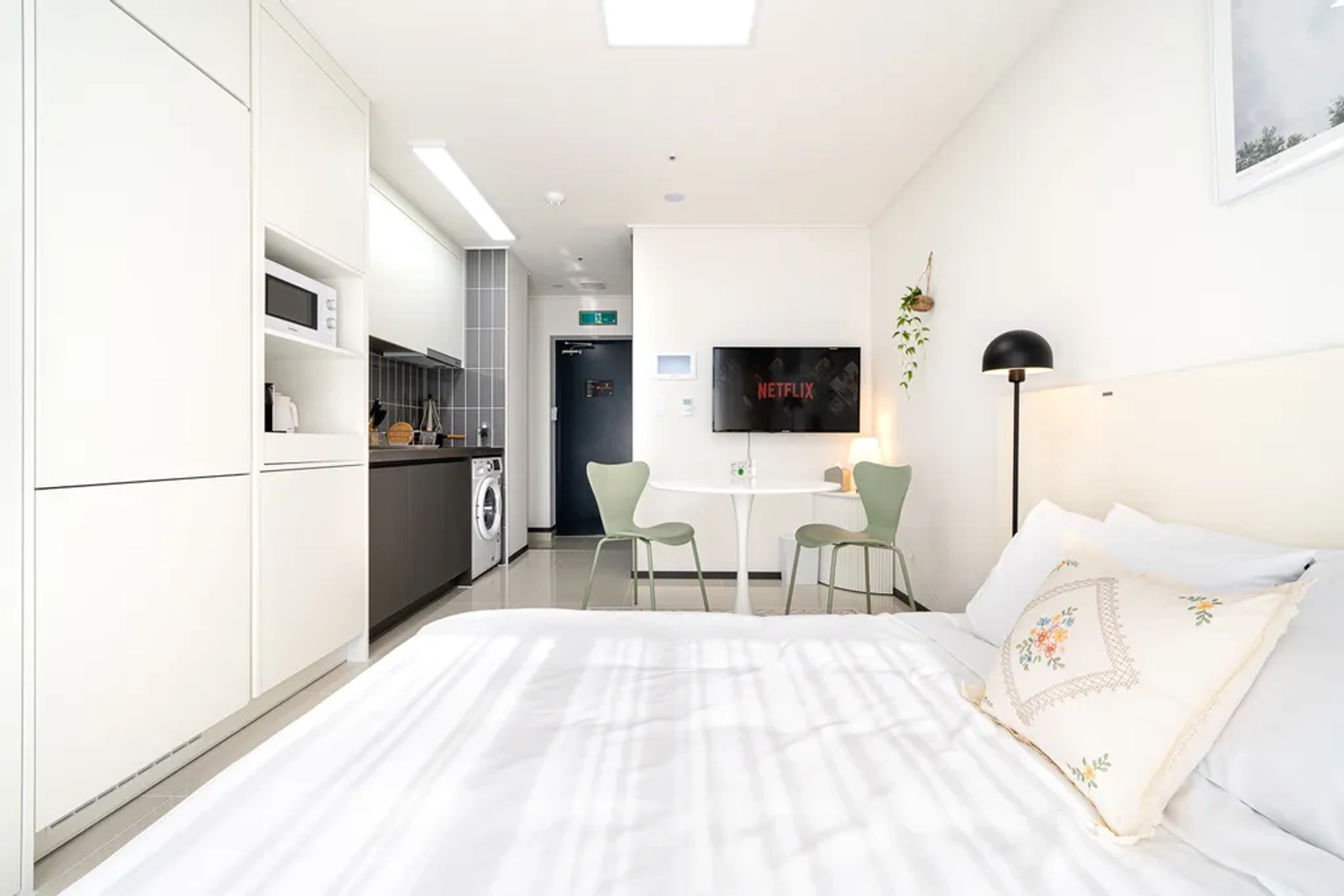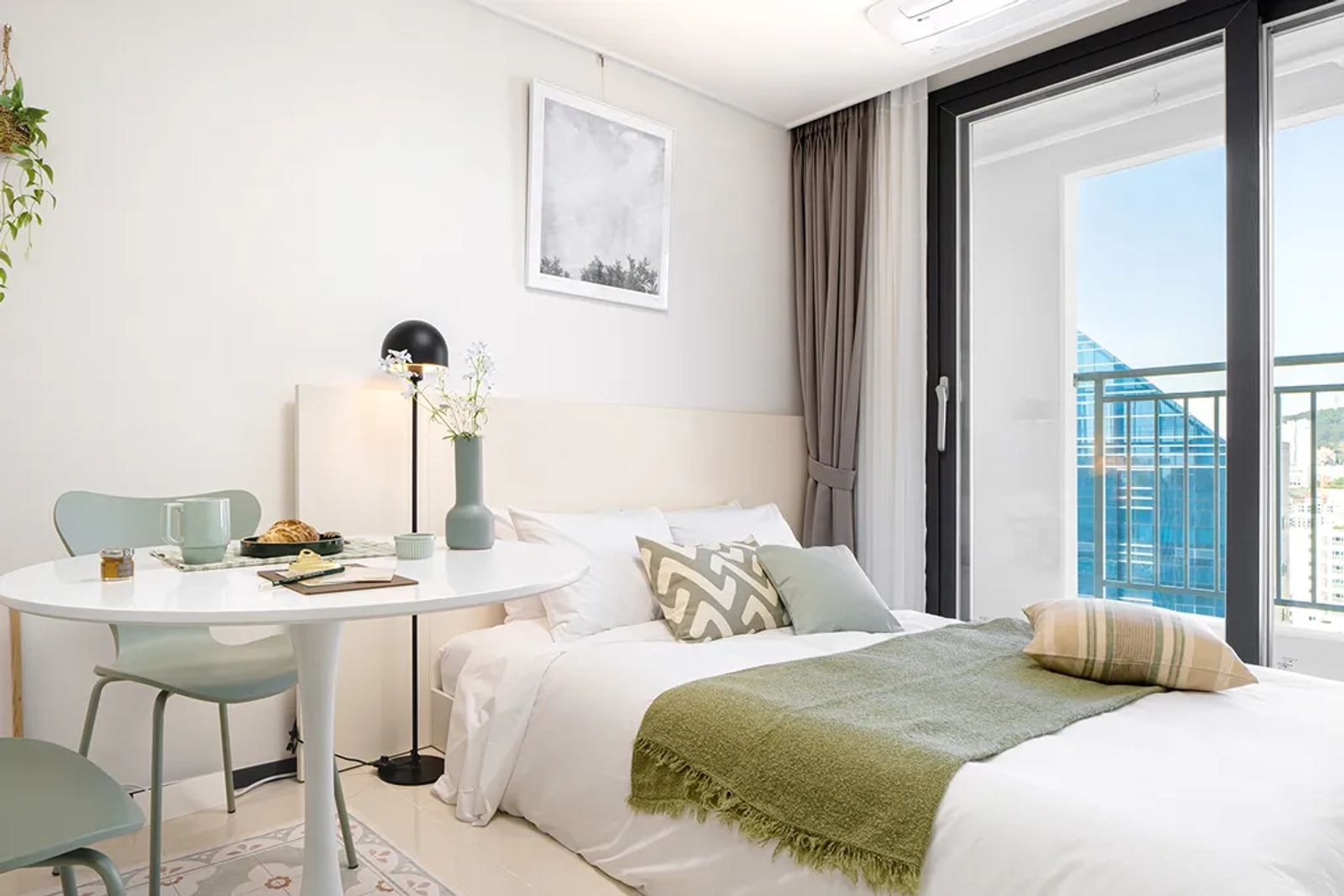
Moved in and found damage—afraid to tap “Confirm move-in”
Sometimes you unpack, look around, and spot an issue you didn’t notice when you booked.
“If I confirm move-in, is that it?”
“Will it put me at a disadvantage if I confirm before reporting the problem?”
Knowing what move-in confirmation means makes it clear what to do before you tap.
Here’s what 33m2’s move-in confirmation means, and what to do if you find an issue after moving in.
What does move-in confirmation mean on 33m2?
How a 33m2 booking works
A 33m2 short-term rental booking has four main steps: ① Request approval ② Pay ③ Confirm move-in ④ Check out.
Move-in confirmation lets the host know you’ve moved in after payment.
What happens when I confirm move-in on 33m2?
According to 33m2’s official guidance, the rental fee is settled with the host once you’ve moved in.
So confirmation marks your move-in as complete and triggers the host’s payout process.
If you’ve already moved in and notice a problem, pause before confirming and check what to do first.
What to do before confirming move-in
① Take photos and videos of the whole room on move-in day
② Take close-ups of any issues
③ Review the listing and amenities, and note anything that doesn’t match
④ Report the issue to the host in the platform chat
⑤ Contact customer support if you don’t hear back or the issue isn’t resolved
Before confirming move-in when there’s an issue, ask the host or customer support what to do next.
How to document issues after moving in on 33m2
I found an issue after moving in on 33m2. Should I confirm move-in first?
We recommend documenting the issue and asking about it first.
How issues are handled after move-in confirmation may depend on the listing and situation, so there isn’t one rule that applies to everyone.
Take photos on move-in day, then let the host and customer support know and ask how to proceed.
Why can waiting make things harder?
After a few days, it can be hard to tell whether an issue was already there or happened while you were living in the room.
Photos and chat records from right after move-in can help explain what happened later.
When can I reach customer support?
According to 33m2’s notice, phone support is available weekdays from 10:00~18:00. Phone support isn’t available on weekends or public holidays.
If you find an issue outside those hours, document it in a 1:1 inquiry and the host chat.